 Jouli
Read the roof before you price it.
Type the customer’s address and check it’s the right house. Jouli shows you the roof from the air, works out which parts of it get the most sun, and lets you lay real-size panels on it. That layout and photo go into the proposal your customer reads.

Illustration, with example values.
Place the panels yourself.
A small roof with four vents. Tap a space, or drag across several, to place or take off panels. The size, the year’s output and the certificates follow as you go.
Address in. Priced roof out.
Six steps, each one you can see and correct. Only the second one uses anything.
- 01Find the house
Type the address and pick it. Jouli puts a box around the house. Nothing is used yet.
- 02Confirm location
Put the house in the box (Standard, or Large for a big roof or outbuildings), press Confirm location, then Yes, confirm.
Uses 1 prepaid proposal - 03Read the survey
Faces with their pitch and direction, the best panel spots, sun hours. The high-resolution photo is fetched for the box.
- 04Place the panels
By hand at the module’s real size, or Auto place on the best surveyed spots. Tilt, direction, orientation and gap are numbers you can type.
- 05Yield from the roof
Each panel takes its surveyed spot’s yearly output. The proposal says which basis it used.
- 06Onto the proposal
The same panels on the customer’s page, and on the crew’s job sheet, numbered.
Press a dot on the drawing to read its note.
4 panels · 1.76 kW · by hand: one press, one panel
Every field, and its source.
Two sources: Google’s roof survey, and a high-resolution aerial photo kept with the job. You can override anything you measured on site.
Every tool, with its key.
Three groups of tools: Placing (Move, Add panel, Select, Obstacle, Auto place), History (Undo, Redo) and View (the zoom and More). On a screen 900 pixels wide or more, the roof opens in the full window. On a phone, the tools sit in a bar at the foot of the screen.
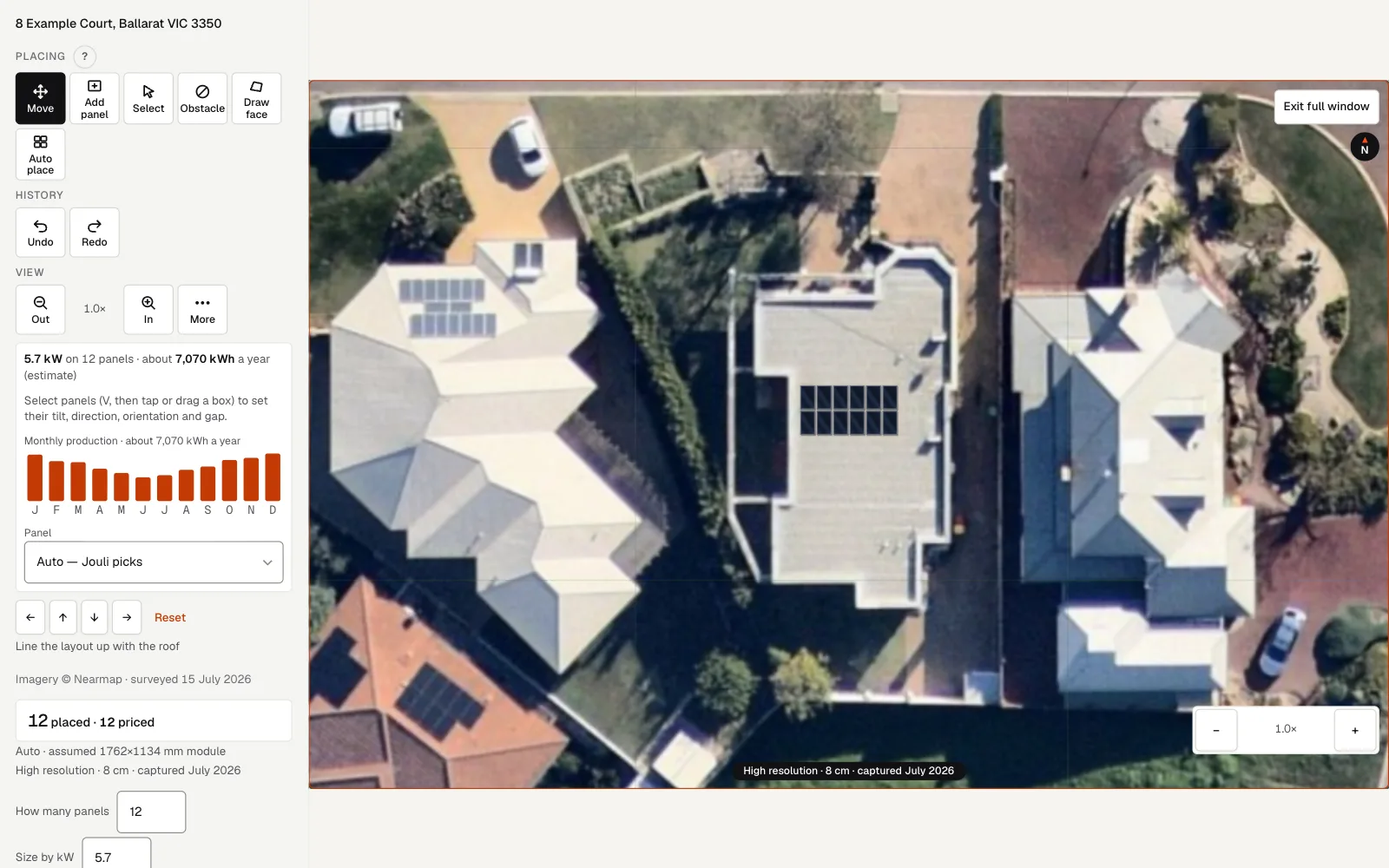 Real aerial photo · demo address
The real roof tool, from a demo company. The suburb under it is a drawing standing in for the aerial photo.
Numbers beside the photo
- Tilt and azimuthSelect panels and type their roof face’s tilt or direction. The estimate follows
- Orientation and gapPortrait or landscape, and the gap between panels in millimetres. Each is one Undo step
- kW and kWh a yearThe panels placed and about what they make a year, an estimate that updates as you place
- PanelChange the module without leaving the photo: the panels are re-sized and the job re-priced
- Monthly productionTwelve bars once the job is priced
- Company gapYour owner sets the usual gap under Admin → Products & pricing → How you price
When the data runs out, it says so.
Jouli doesn’t fill a gap with a guess. Each fallback shows in the cockpit and, where it matters, on the proposal.
Generation never changes the price. Panels, the system and your rate card set it.
- No roof surveyDraw up to 12 faces, each with a pitch and a direction
- A panel off the surveyThe estimate uses the postcode’s yield, and says why
- Address placed approximatelyA line asks you to check it’s the right building
- Survey over 18 m from your pointTreated as someone else’s roof; you place by hand
- Imagery over two years oldA line asks you to check the roof still looks like this
- No high-resolution photoThe job uses the map’s own photo
- No aerial photo at allNo solar draft; battery, hot water and air-con still work
One prepaid proposal per new address.
On a solar job it’s used at Yes, confirm. A battery, hot water or heating and cooling job with no roof to lay out uses one when you generate its first draft instead.
You can fix a wrong house or a typo once, before you generate, at no cost. With none left, a new address can’t be confirmed until your owner buys a pack; jobs at addresses already used keep working. See the packs.
Then free at that address:
- Confirming the location again
- Sending, resending and tests
- Refining the proposal, new prices and variations
- A duplicate at the same address
- An older photo from another survey date
- A battery, hot water or air-con on the same job
A model, not a measurement.
Imagery has a date
A roof can change after it was photographed. The date is always on screen, and on the proposal.
No setbacks invented
Clearances come from the rules for the site and the panel maker’s manual. Your installer sets them.
The site inspection confirms it
Measure each face, check shade and obstacles, and confirm the string design: the job sheet’s is marked proposed, not certified.
Their own roof, with the panels on it.
The proposal shows the photo and the layout, says where the generation came from, and says the site inspection confirms it.
- On the coverTheir roof with the panels drawn on it
- What it should do on your roofThe photo larger, with the north mark, sun hours and how many panels fit
- The facts behind itWhen the roof was imaged, each face used with its tilt and direction, and whether that came from the imagery, the site or your consultant
- No layout, no sendA solar proposal is held until the panels are on the roof
- The crew’s job sheetThe same photo with each panel numbered, and no prices
Roof analysis, answered.
Does finding an address use a prepaid proposal?
No. Finding it on the map, moving around and zooming are free. One is used when you press Yes, confirm on a new address.
Is the high-resolution photo extra?
No. It comes with the proposal, where it covers the address. Where it doesn’t, the job uses the map’s own photo and everything else works the same.
I confirmed the wrong house. Have I lost one?
You can fix a wrong house or a typo once, before you generate, at no cost. At an address already paid for, Wrong house moves the box for free.
What happens where there’s no roof data?
You draw the roof faces yourself, with their pitch and direction, and place panels inside them. Where there’s no aerial photo at all, a solar draft can’t be made; a battery, hot water or air-con job still can.
Does the roof change the price?
No. Panels, the system and your rate card set the price. The roof sets the generation estimate.
Can I make the box bigger?
Yes. Before you confirm, choose Large instead of Standard: the box is twice as wide and tall, for a big roof or a shed or garage as well. The photo is a little less sharp, and it uses the same prepaid proposal.
How many panels can one layout hold?
Up to 80.
Is there a daily limit on roof scans?
Yes. Once you’ve bought a pack, a company can run up to 60 roof scans a day; until your first pack it’s fewer. Finding an address on the map doesn’t count.
Read your first roof on us.
No card. 5 free proposals once sending is switched on, to use within 30 days.
Guide: draw the roofCRMAll featuresGuide: Draft your first proposal from an addressGuide: Place, move and turn panels on the roof map